Overview


Course Duration: 16 Hours
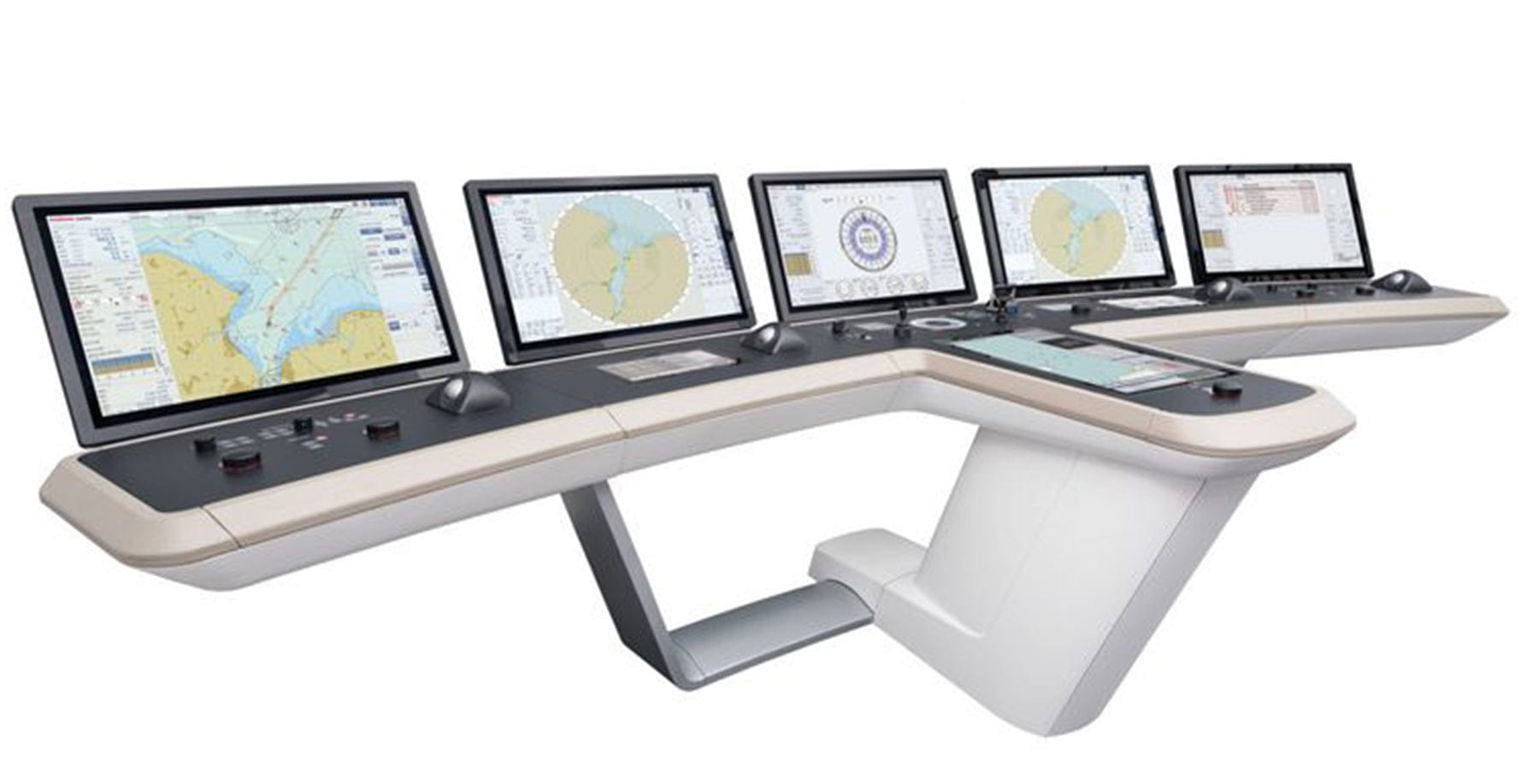
The ECDIS e-Learning type-specific training courses provide trainees with the knowledge required to safely operate a specific ECDIS for watch-keeping in accordance with the regulations of STCW and ISM. Due to its online accessibility the course can be done from any computer at any time. The officer can work directly on the live ECDIS using the full range of functions and controls.
One course, any system. Choose from the following ECDIS Type-Specific Training options below:
- ChartWorld eGlobe G2
- Consilium ECDIS G2
- Consilium ECDIS Selesmar
- JRC JAN 901B/701B/2000
- JRC JAN 9201/7201
- Kelvin Hughes Manta Digital ECDIS
- Sperry Marine VisionMaster
- Anschütz Synapsis ECDIS NX
- Anschütz Synapsis ECDIS
- Simrad E5024
- Simrad MARIS ECDIS900
- Tokyo Keiki EC-8100/8600
- Wärtsilä NaviSailor 4000 by Transas
- Wärtsilä SAM ECDISPILOT Platinum
- Wärtsilä CHARTPILOT
Description
PLEASE NOTE: Access to ECDIS simulators is set to 21 days. Extended access can be requested.
Who is this course for?
This course is designed for all officers of the bridge team involved in ensuring the safe navigation of the vessel.
Is previous experience required?
ECDIS Generic knowledge, as per STCW and IMO Model Course 1.27, is highly recommended
How will this course benefit me?
This course provides officers with the system knowledge required to use this ECDIS for watchkeeping in accordance with the regulations of STCW and the ISM Code.
How will this course benefit my company?
By ensuring ECDIS competence through interactive and practical training in accordance with the manufacturer’s standards.
What standards are referred to in this course?
The International Convention for the Safety of Life at Sea (SOLAS)
The International Convention on Standards of Training, Certification and Watchkeeping for Seafarers (STCW)
International Maritime Organization (IMO) Model Course 1.27
Is there an assessment?
Yes
Learning Objective
Section 1: User Interface and Operating Philosophy
• Explain the fundamental design features of the ECDIS that may differ significantly between different ECDIS manufacturers
Section 2: ECDIS Basic Features
• Explain the procedure of adjusting the display to your requirements to ensure that all relevant information and alerts are captured, and cluttering of visual and audible information is avoided
Section 3: Chart Work
• Describe how traditional paper chart tasks are performed on the ECDIS
Section 4: Alert Management
• Describe the management, handling and interpretation of alarms, cautions and warnings
Section 5: Sensors
• Identify the navigational sensors that display information such as the vessel’s position, speed and course in real-time on the chart, and explain the provided data and its limitation
Section 6: Route Planning
• Explain how to plan routes, complying with the general requirements for voyage plans, as well as specific instructions given in the safety management systems of shipping companies and charterers
Section 7: Route Monitoring
• Define the ECDIS specific route monitoring feature and explain how to monitor the voyage and all related data safely
Section 8: Chart Maintenance
• Explain the process of chart ordering, chart installation and the updating of charts considering that charts and updates may be received via the internet or ship’s mail
Section 9: Backup Arrangements and Data Management
• Describe the backup arrangements and data management requirements that need to be met when using the ECDIS as the primary means of navigation
Section 10: Navigational Tools and Other Related Information
• Explain the additional functions and information that can be displayed on the ECDIS (e.g. radar information overlay, wave analysis, NAVTEXT messages or tidal information)
Assessment
Exam in Trainingportal
System Requirements
• Internet access - users will need a device with a web browser and internet connection
• System - runs on computers, tablets and mobile devices using Windows 7 and above and MAC OS devices running IOS 11 and above
• Browsers - Edge, Chrome, Firefox
• Minimum browser size - none
• Audio - requires device speaker or headphones
• Webcam required
ECDIS Proctoring
This course requires proctoring or supervisor authentication to verify your identity during the exam to comply with accreditation standards. It is important that you register before beginning the course in advance, to ensure a seamless experience and avoid any inconvenience.
To comply with accreditation standards, this course requires the completion of two critical steps once a learner has access: registration and webcam verification. Please follow the instructions below carefully to ensure successful course completion.
Delegates must submit a valid, ID document that states their nationality and a selfie during the registration process, as outlined in the course introduction. For more details, please refer to this link.
It’s important to register immediately before starting the course, as the third-party authenticator may take 24 to 48 hours to process your submission.
You may begin the training while awaiting confirmation, however, the exam will unlock only after 70% of the course content has been viewed and your ID verification is complete. This process ensures that your identity matches your webcam during the test. If your ID registration fails, you can log back into your account to resubmit. Please note that you will need to wait for processing times again.
The webcam must be enabled for the verification process to be completed.
Check Webcam Settings:
Computer Settings:
-
Windows: Go to Settings > Privacy > Camera to allow app access.
-
Mac: Navigate to System Preferences > Security & Privacy > Privacy tab to grant camera permissions to your browser or exam software.
Webcam Software:
Use the built-in camera app (search "Camera" on Windows or use "Photo Booth" on Mac) to check for hardware issues.
Important information
We strongly recommend that you proceed with the registration before starting the eLearning part of your course, as it takes up to 48 hours for the registration to be verified. If you complete the eLearning part before the proctoring registration process, your test will remain locked, and you will have to wait up to 48 hours for the registration to be completed.
Our Support Team will review and validate your identity to officially authenticate your course and your certificate will be issued within 1 business day.